1. Overview
It is simple, beautiful and suitable for Corporate, Startup, Business, Agency, Digital Marketing, Creative, Promotion, Marketing, Lead Generation and general purpose.
30+ Drag and drop modules
15+ Ready to use templates & 5+ System pages
Re-Usable Sections
Zero coding lightweight theme with high speed
Responsive HubSpot theme with a mobile-first approach
These assets can be used to create visually appealing web pages using the HubSpot CMS. Let’s get this party started.
2. Components
Modules: They are interchangeable objects that add various functionality to your page. You can simply drag and drop these on your page and start editing. There are 30+ modules in the Startup HubSpot theme.
Templates: Templates are sample layouts for your ease in the Startup HubSpot theme. You can use these templates and replace the images and text according to your organization. There are 15+ templates and 5+ system pages in the Startup HubSpot theme.
Global Theme Settings: Any global setting on your website pages changes all the asses linked to it. Global content will be applied all over your website universally. Similarly, the settings remain unchanged for every page using that module with the global modules.
3. Creating a Page in HubSpot Theme
For creating a page in your HubSpot CMS using our theme, follow these steps:
- Log in to your HubSpot account
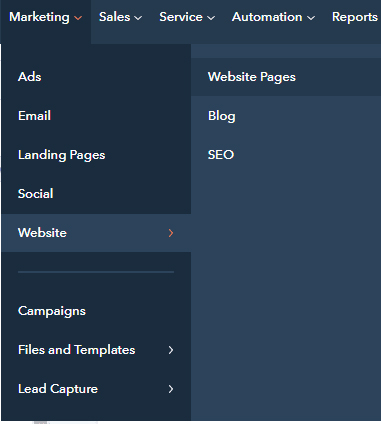
- Go to Marketing > Website > Website Pages
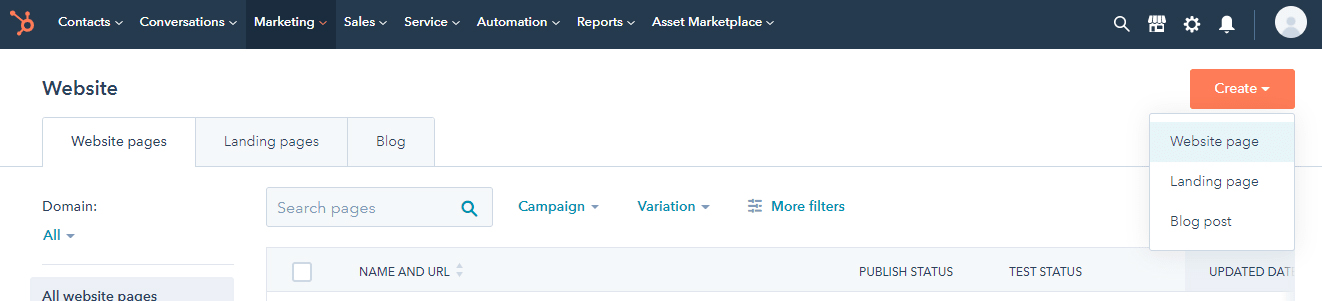
- Locate Create option on the top right corner > Select the type of page you want to create from Website Page or Landing Page
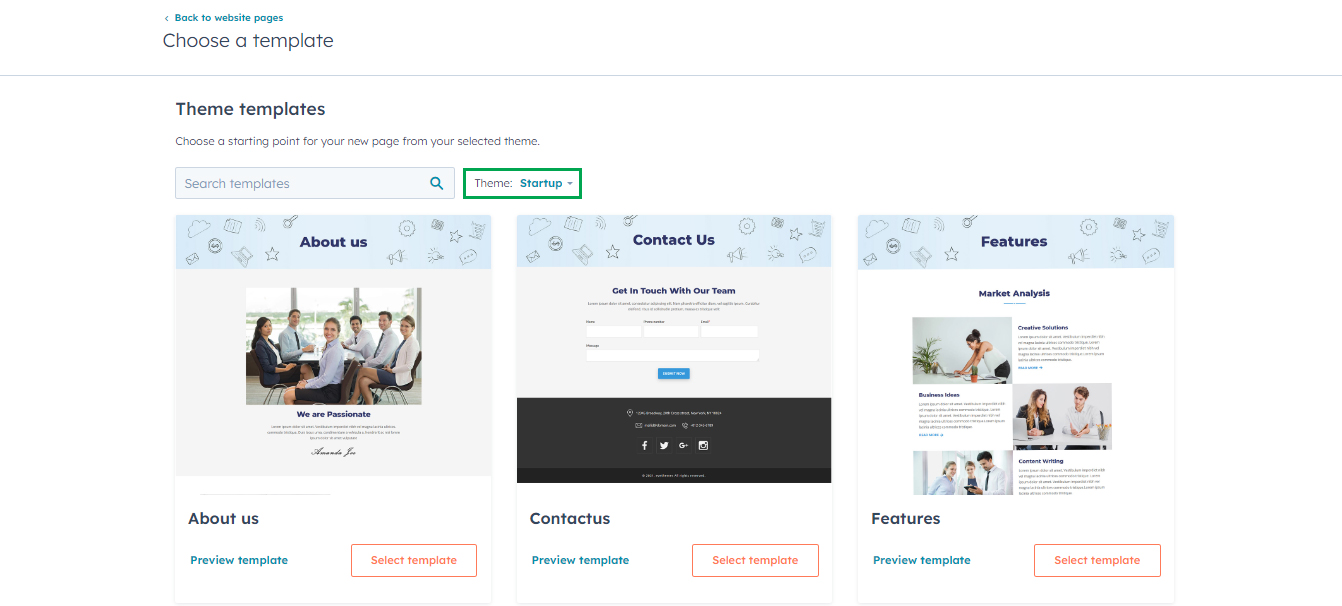
- Name the page > Select Startup theme > Select desired template from the dropdown > Press Select Template
- Add meta description, add or remove modules, and other details before publishing the page. A page title is necessary before publishing any page.
4. Edit Global Modules
In the Startup theme, there are 2 global modules:
Website Header
Website Footer
- Once you create a page, you can start editing them. There are 3 sections on the left panel named Add, Content, and Design.
- Click on Content > View Website Header with navigation module and Footer at the bottom.
- Now you can edit the one you want first.
4.1. Header
- From the Page Editor > Go to Content > Go to Page Header
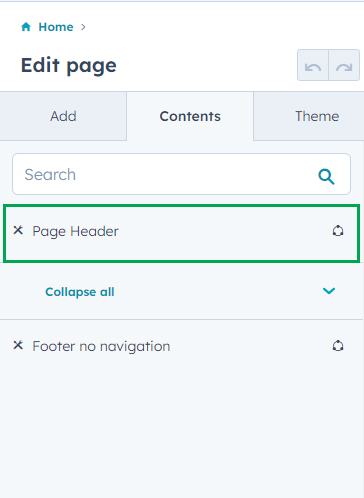
- A Pop up will appear > Click Open in the global content editor
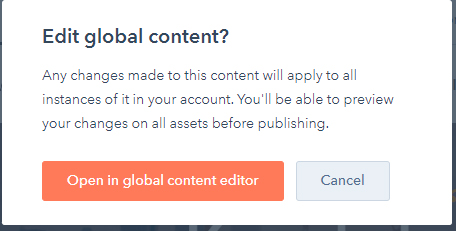
Note: Publishing any change in the website header and footer will change all your website assets.
4.2. Footer
- From the Page Editor > Go to Content > Go to Footer
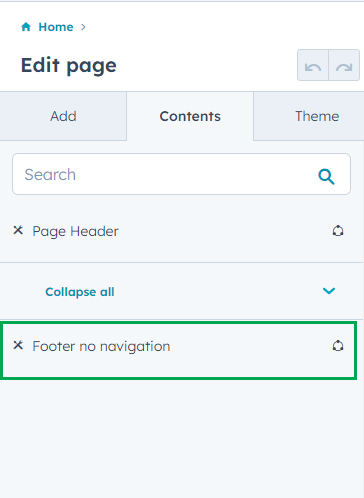
- A Pop up will appear > Click Open in the global content editor
- Change the header according to your requirements > Publish the changes.
Note: Publishing any change in the website header and footer will change all your website assets.
4.3. Header Modules
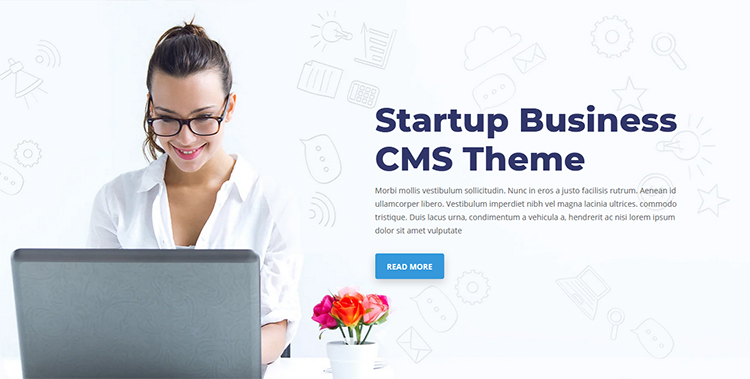
Startup-static-header
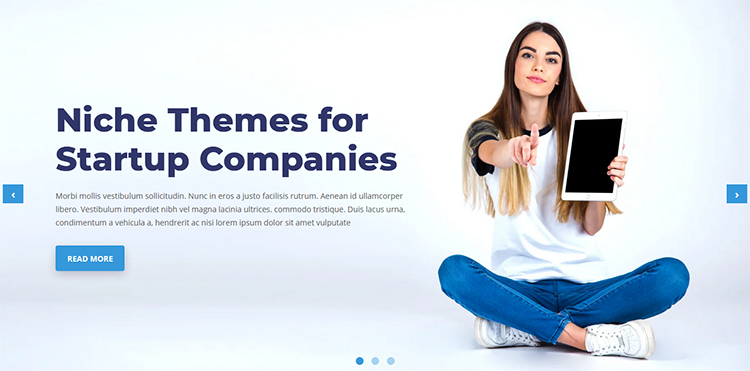
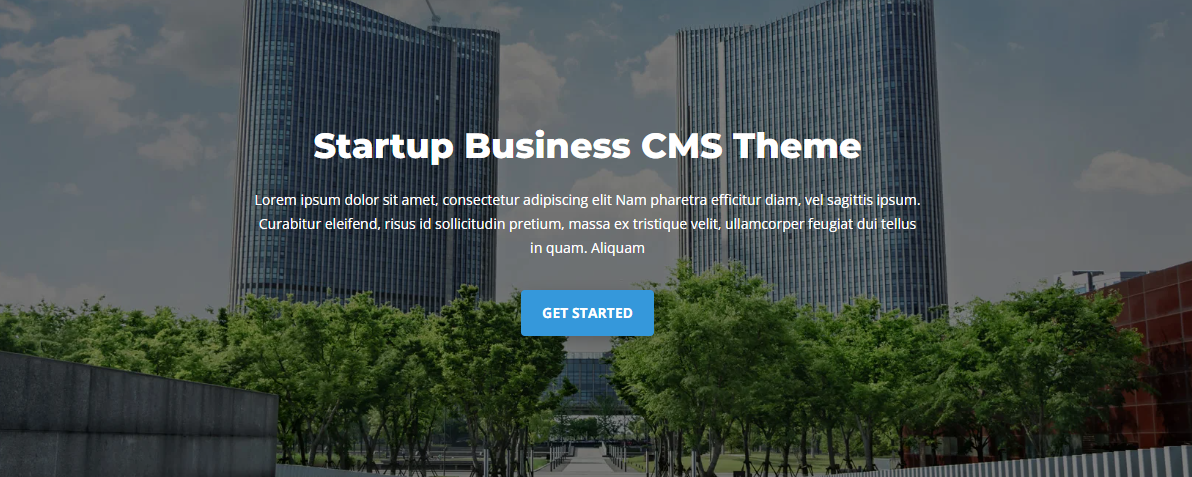
Startup-header-background-slider
Startup-header-video
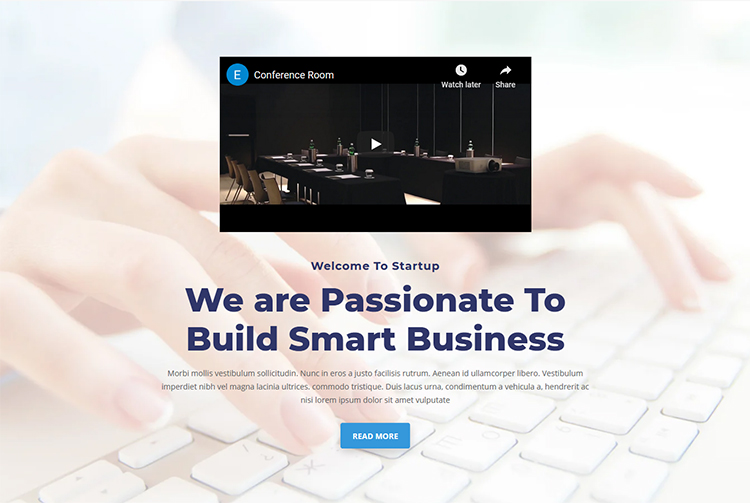
Startup-header-background-video
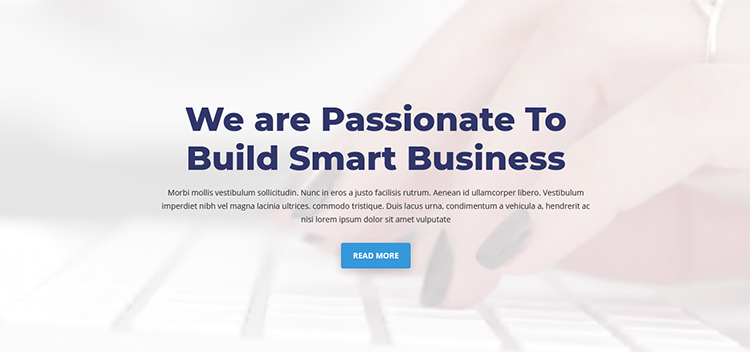
Startup-parallax-header
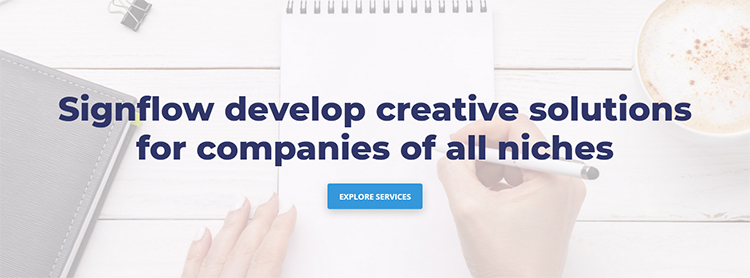
Startup-header-video-left
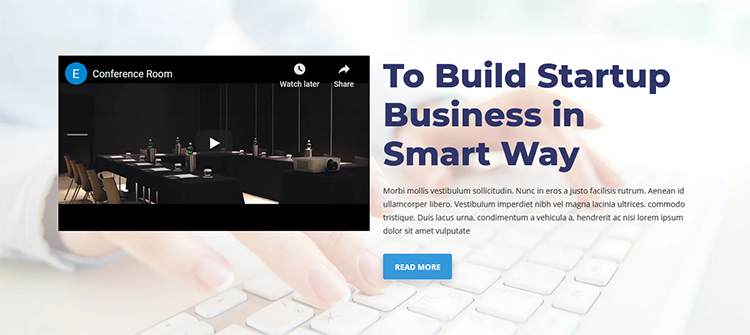
Startup-header-video-right
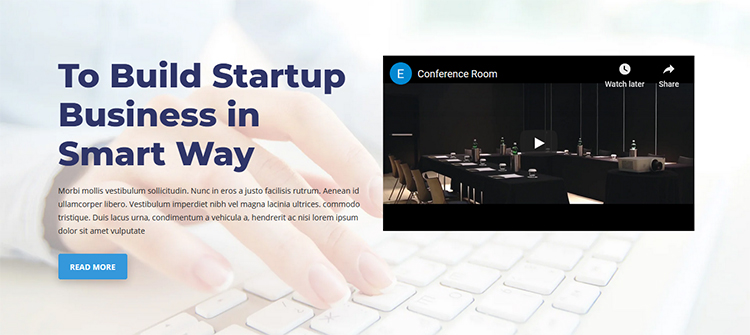
4.4. Custom Modules
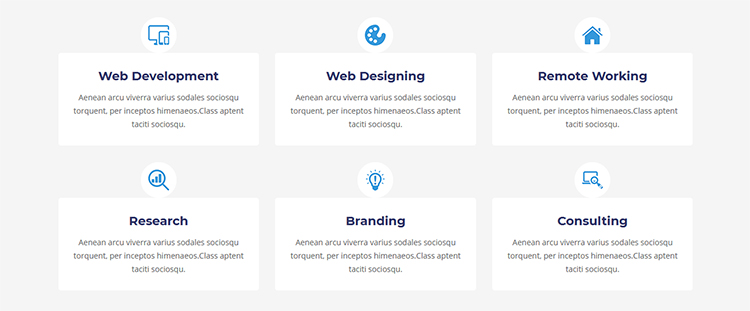
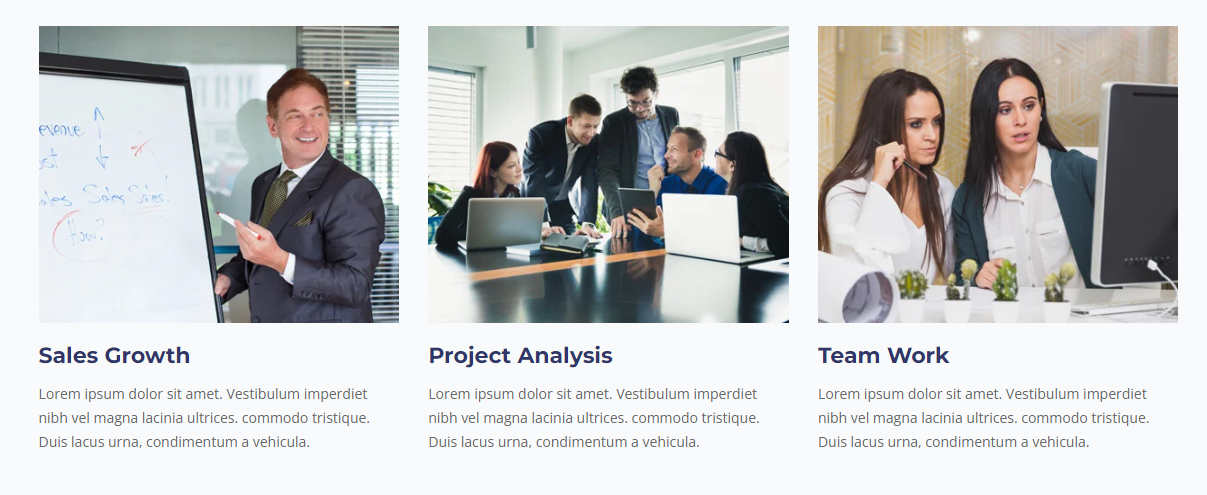
Startup-section-servicesoffered
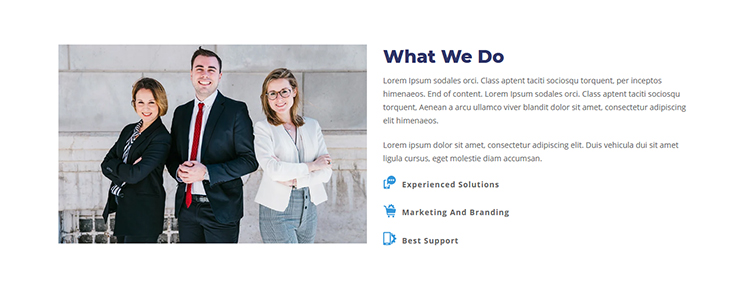
Startup-section-whatwedo
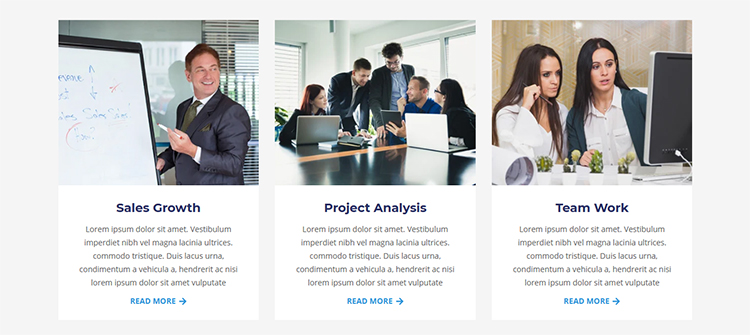
Startup-section-ourenvironment
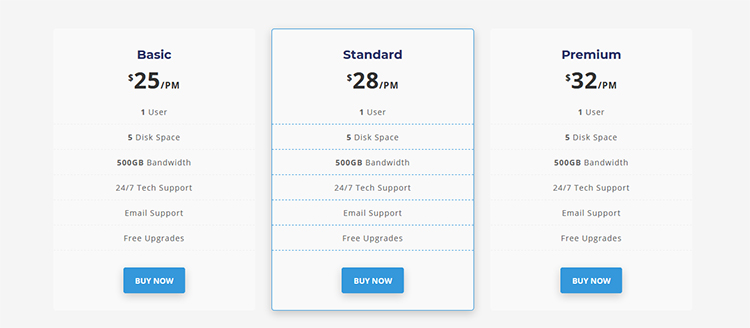
Startup-section-ourpricing
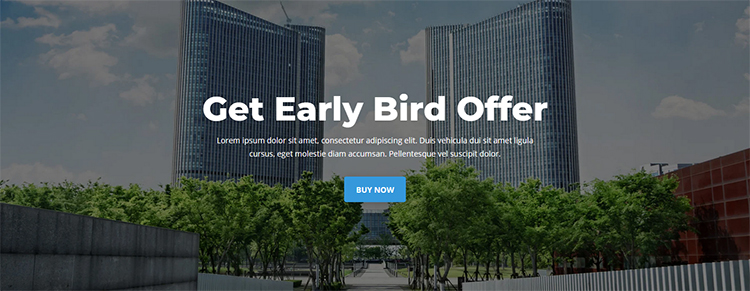
Startup-section-CTA
Startup-section-team

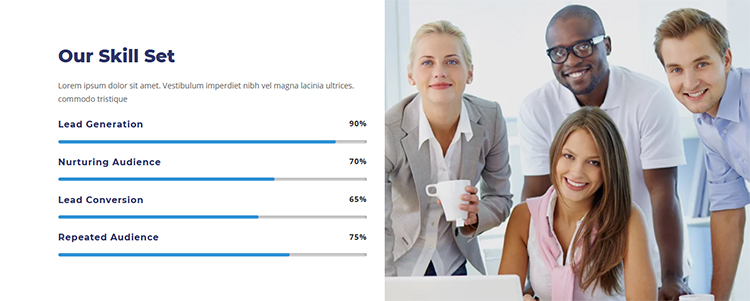
Startup-section-skill
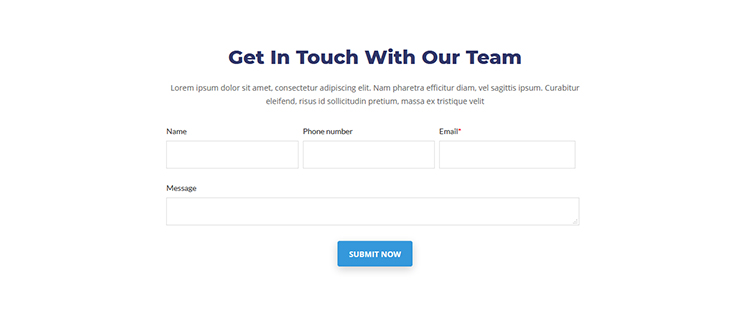
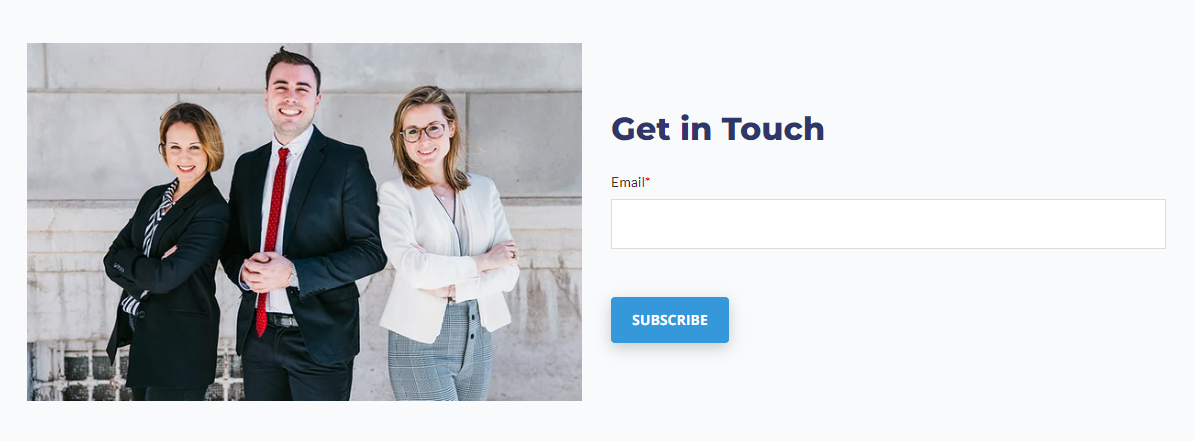
Startup-section-getintouch
Startup-section-whyweare
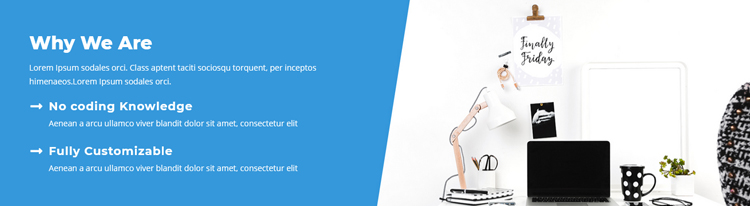
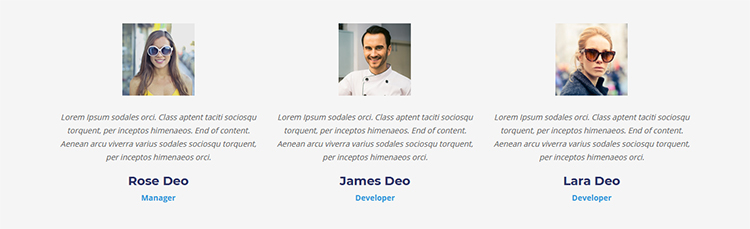
Startup-section-team
Startup-section-testimonial
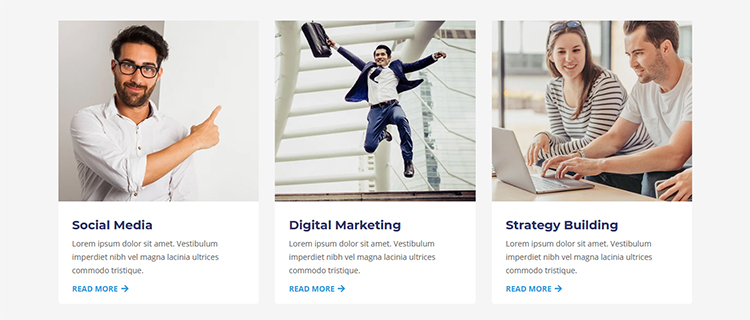
Startup-section-latestprojects
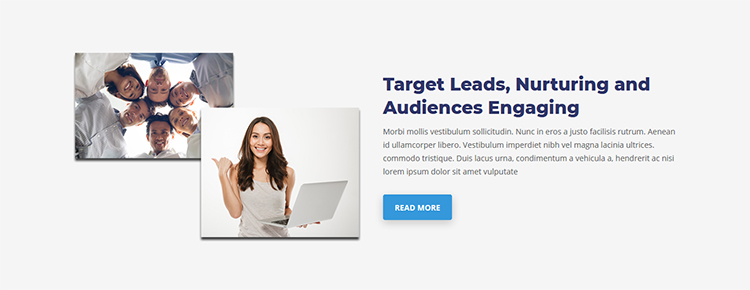
Startup-section-twocolumn-one
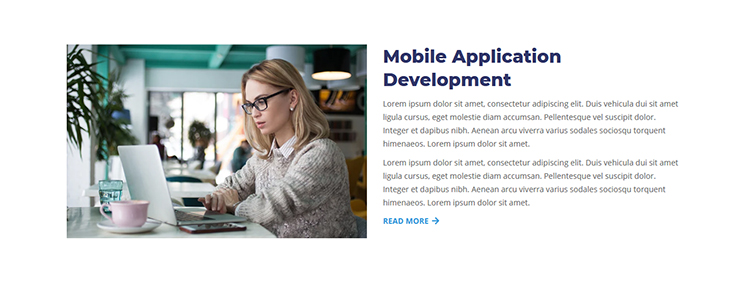
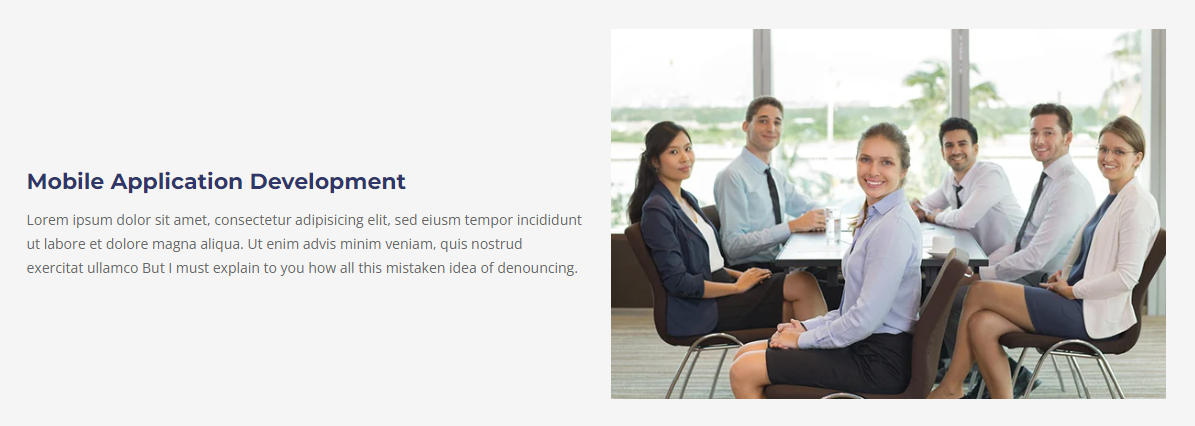
Startup-section-mobileapplicationdevelopment
Startup-section-footer
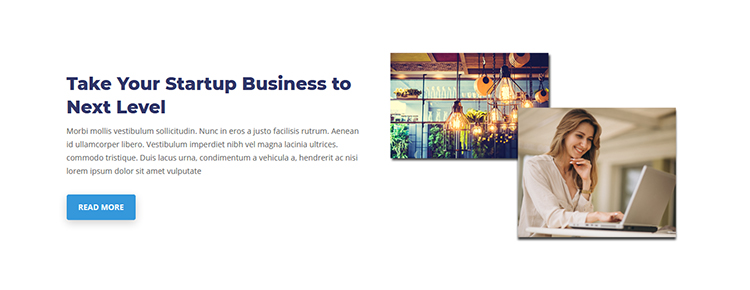
Startup-section-twocolumn-two
Startup-section-mini-header

5. Change Blog Template
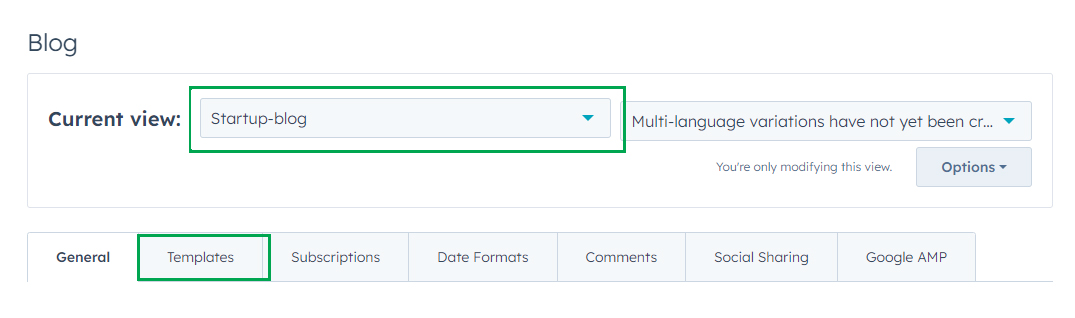
Changing blog templates allows you to decide your blog pages’ look and feel. To do so:
- From your HubSpot account > Go to settings > On the left panel, locate and go to Website option > Select Blog > Select Template.
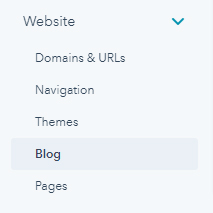
- Select the edit page option and continue editing if you want to start editing this blog page.
6. Edit Global Style
Any customization done in the global settings will be applied to all Pages using those modules. It is a good option to keep your customizations constant across Collections and Default Pages
To edit global styles, follow these steps:
- Locate the Edit Page Panel on the left side of the screen. Three options are available on this panel. Namely, Add, Contents, and Design.
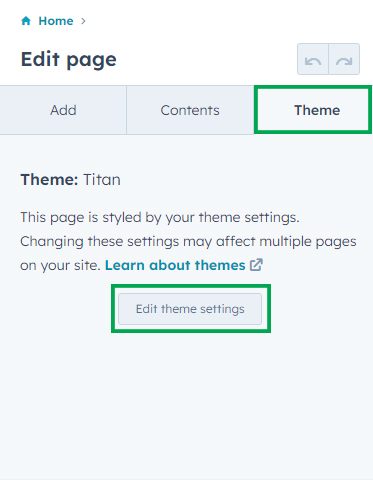
- Click Design, you’ll see an Edit Theme Settings button. Click ‘Edit Theme Settings’ to make global changes to the theme.
- Edit theme settings will direct you to theme settings. Here, you can also change global colors, global fonts, spacing, typography, buttons, fonts, tables, website header, website footer, blog settings, and system pages.
7. Edit Theme Settings
You can edit the theme settings through the following:
- Go to Marketing > Website > Website Pages > Choose any page to edit or create one
- Go to Edit Page Panel on the left > Design > Edit Theme Settings
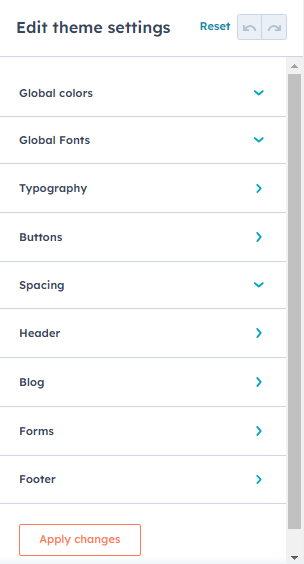
Here you have the following options, under which you can make a set of change
8. Re-Usable Sections
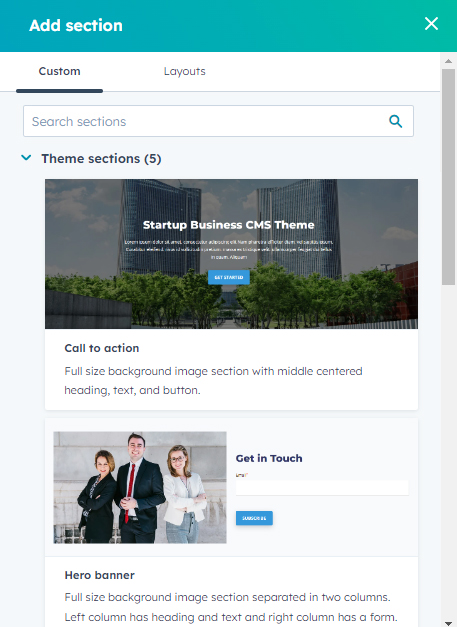
There are 8 re-usable sections in the Startup HubSpot theme. For implementing re-usable sections all you need to do is
- Hover over any of the sections > locate and click the plus icon> Choose from the list of reusable sections > Publish changes.

Support
For support, please mail us to support@evethemes.com


© 2023, All Rights Reserved